5 Common Figma Prototyping Challenges & How to Avoid Them

Key takeaways
- Less is more in prototyping. Avoid overcomplicating interactions with excessive animations, focusing on those that genuinely enhance the user experience.
- Don’t just scratch the surface; delve into advanced features like Smart Animate and overlays to avoid clunky animations and unexpected behaviors.
- Label elements, add notes, and utilize Figma’s collaboration tools to ensure smooth handoffs and reduce miscommunication between designers and developers.
Figma is a fast and intuitive design tool that’s packed with valuable features. However, whether you’re a beginner or an experienced designer, there’s a good chance that you’ve hit a few roadblocks during the prototyping phase. Therefore, understanding Figma’s prototyping challenges early on saves hours of confusion and rework. This guide outlines the 5 most common issues designers face, and how to fix them right away.
What is Figma’s prototyping?

Take a look around your workspace; you’ll see computers, smartphones, and tablets: most of these modern products started out as humble prototypes. To create a prototype, designers must use rapid iteration to build, test, and add feedback to a product design.
This is where Figma comes in. Its prototyping features allow you to build interactive flows that explore how visitors interact with your designs.
Prototypes are a great way to:
- Check interactions and user flows
- Share and iterate ideas
- Receive feedback from team members
- Test interactions with users
- Presenting your design to stakeholders
Figma’s prototyping offers numerous benefits, but designers must use it effectively to fully realize these advantages.
The most common challenges in Figma prototyping and how to fix them
In this article, we’ll look into the most common challenges designers face when trying to build prototypes in Figma and how you can resolve them. Let’s dive into it!
1. Not utilizing Figma’s prototyping features properly
Figma’s prototyping tools may seem simple at first glance. Simply connect frames with arrows, add interactions, and you’re ready to get prototyping. But if you go deeper into its features, you’ll find a range of advanced features, including overlays, smart animate, and interactive components that may confuse designers.
General issues:
- Struggle to set the desired transitions (mixing up “Instant” and “Dissolve” effects).
- Using “Smart Animate” incorrectly may lead to clunky animations instead of the desired smooth micro-interactions.
- Overlays and interactive elements behave unexpectedly due to improper setup.
Take time to explore Figma’s prototyping features. Smart Animate works by animating changes between two versions of the same element, so ensure that the same names and layers are maintained across frames. For overlays, understand the difference between modal interactions and floating overlays. You can check out Figma’s tutorials on YouTube and community resources to learn the ins and outs of these features.
2. Overcomplicating interactions
It’s tempting to use every transition effect, animation, and interactive component, but simplicity is often better.
Common issues include:
- Excessive animations or transitions that clutter the user experience.
- Overusing complex interactions that slow down performance.
- Prototypes that feel overwhelming will make it hard for stakeholders to understand the user flow.
Remember that less is more. Stick to interactions that enhance the UX and remove unnecessary elements. Use Figma’s powerful animations and micro-interactions to enhance usability instead of distracting from it.
3. Handling variants and component overrides
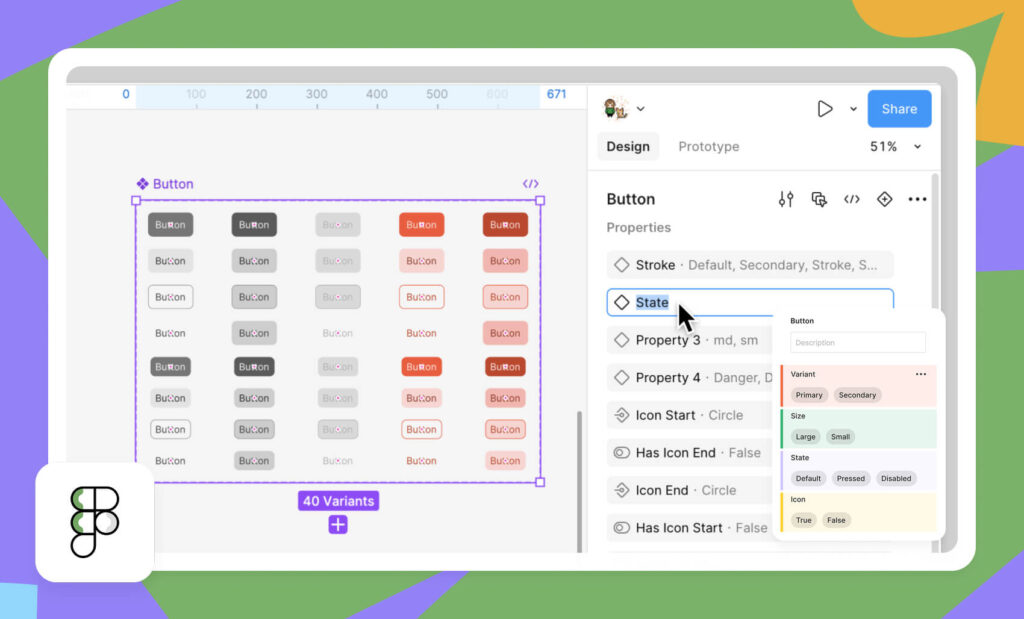
Figma’s variant feature is one of the platform’s most powerful tools. It allows you to manage various states of the same component, such as buttons in hover, active, and inactive states. However, managing component variants and overrides can become complicated, especially when dealing with multiple components in a project.
Common issues:
- Confusion on how to set up and link variants properly.
- Struggling to reset overrides when updating variants.
- Variants behave unexpectedly in prototyping mode (e.g., hover states not activating).
Ensure you fully understand the concept of variants before you begin. When creating a variant, pay attention to the properties you’re looking to override and how they interact throughout your system. Organizing your components systematically will save you a headache when your project grows. If a hover state doesn’t work, check if you’ve set up the interaction under the right trigger in the Prototype tab.
4. Create responsive prototypes
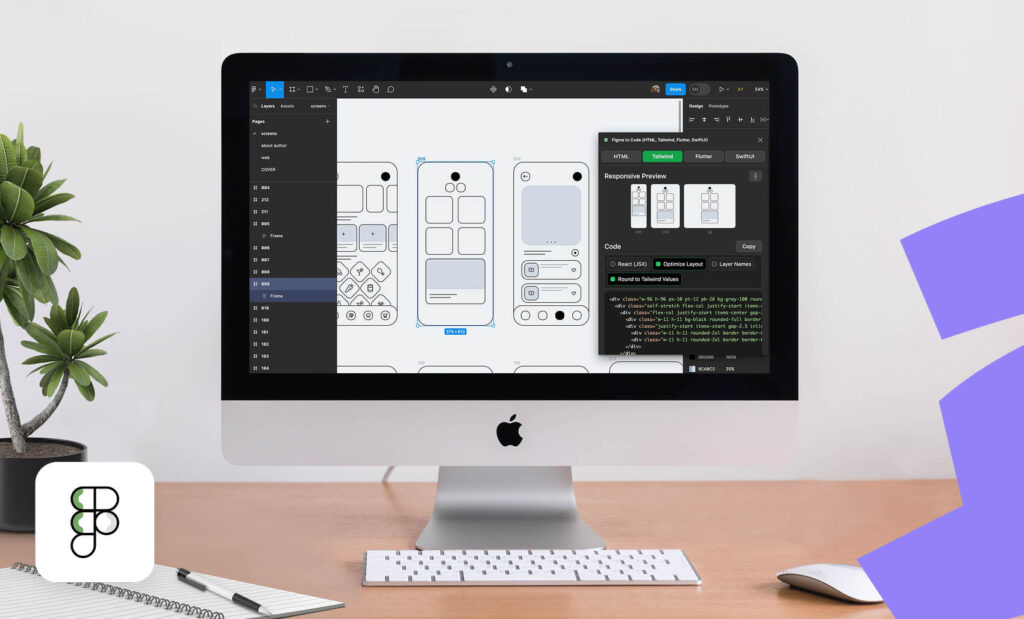
Its ability to design responsive layouts is one of Figma’s biggest advantages. But this may also become frustrating if you’re unfamiliar with properly setting constraints, grids, and auto-layout. Without the necessary knowledge of these tools, your prototype may look great on one screen size but doesn’t offer the same experience on others.
Common issues:
- Difficulty in setting up flexible frames to adapt to various screen sizes.
- Improper use of constraints (such as not pinning elements to the correct edges or aligning them properly).
- Struggles with Auto Layout that can become complicated when dealing with necessary components.
Mastering constraints and Auto Layout is essential, as they help you with responsive design in Figma. Constraints let you observe how elements behave when screen sizes change. On the other hand, Auto Layout ensures that elements adjust automatically based on the screen size. Experiment with these features and start small to grasp how they work together.
5. Poor collaboration and handoff
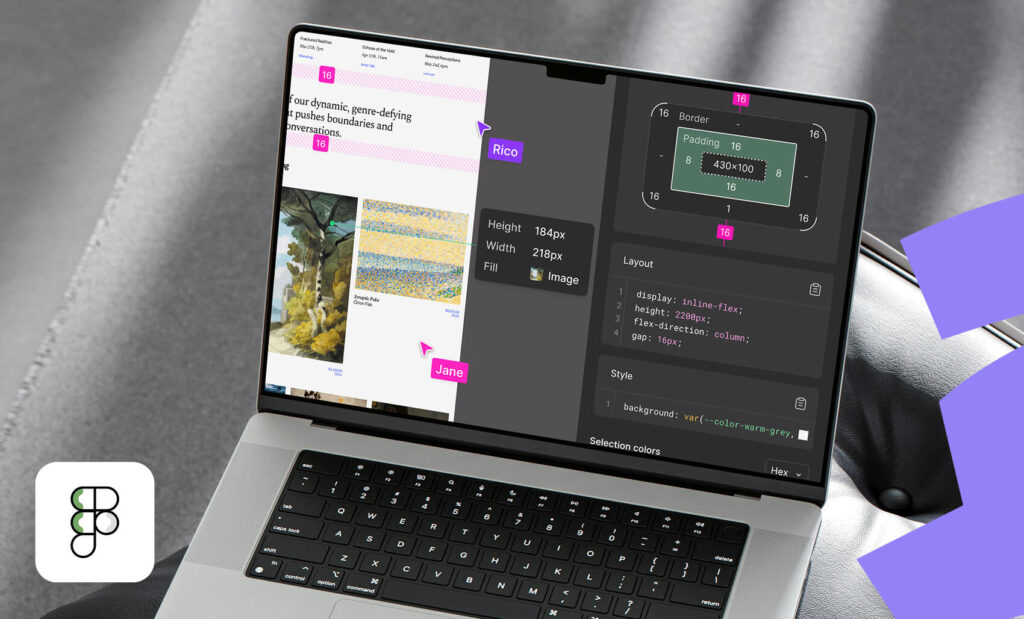
Figma is popular for its real-time collaboration features, but collaboration can quickly go wrong when the team isn’t on the same page. Designers usually face challenges when passing on a prototype to developers or collaborating with team members who haven’t fully grasped the design intent.
Common issues:
- Miscommunication between designers and developers on what the interactions should be like.
- Design systems that get out of sync between members.
- Lack of documentation or annotations for more complex interactions.
Remember that communication is key! Ensure that your design handoff is smooth by labeling every element clearly and offering notes when needed. Figma lets users add descriptions to every component, so make use of these features to give developers or other team members insights on how the interactions should perform.
Therefore, use Figma’s collaboration tools, such as comments, and incorporate documentation tools. Even a short Loom video that explains key interactions can make a big difference during the handoff.
FAQs on Figma prototyping challenges
Do I need a high-powered computer to run complex Figma prototypes?
Not necessarily. Figma runs in the cloud, so your computer mainly handles rendering and playback. Even so, very heavy prototypes with lots of animations, nested components, or large images can slow things down. If playback becomes laggy, try reducing animation density, compressing images, or using fewer overlapping overlays. Switching to Chrome or the Desktop App can also improve performance.
Can I test my Figma prototype with real users?
Yes, you can. Many designers use Figma prototypes during moderated or unmoderated usability tests. Tools like Maze, UseBerry, and Lookback integrate directly with Figma links. Just ensure your prototype includes realistic interactions, intuitive pathways, and clear tasks so testers can focus on usability rather than navigation issues.
How can I speed up collaboration when multiple designers are working in the same file?
Use the built-in multiplayer features wisely: assign clear responsibilities, use color-coded components, establish naming conventions, and rely on comments rather than editing someone else’s work without notice. Consider using “branches” for major prototype changes; this prevents conflicts and provides teammates with a clear history of updates before merging.
Bringing It All Together
Prototyping in Figma revolutionizes modern design, but like any tool, it comes with its own set of challenges. Whether you’re mastering Smart Animate, building responsive designs, or coordinating with your team, the process can sometimes feel like a balancing act of multiple skills and techniques.
The upside? With experience, these hurdles become easier to overcome. By making the most of Figma’s powerful features and refining your workflow, you can craft seamless, high-quality prototypes that captivate stakeholders and enhance user experiences.
Need help improving your SaaS site or product? Get in touch! We can help.

Curious, rebellious learner. Passionate about design, philosophy, and psychology. Loves ice cream, family, and simplicity. Always growing through new experiences.